


“5 Key Elements for a Successful Women’s Blog” plus 1 more |  |
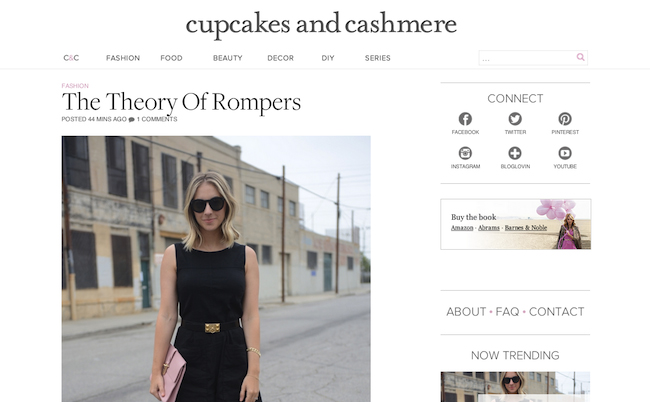
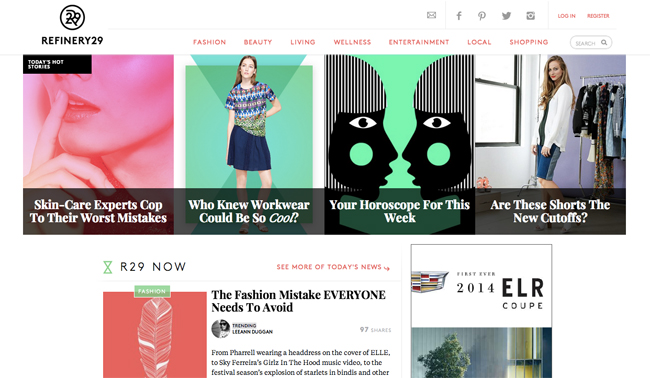
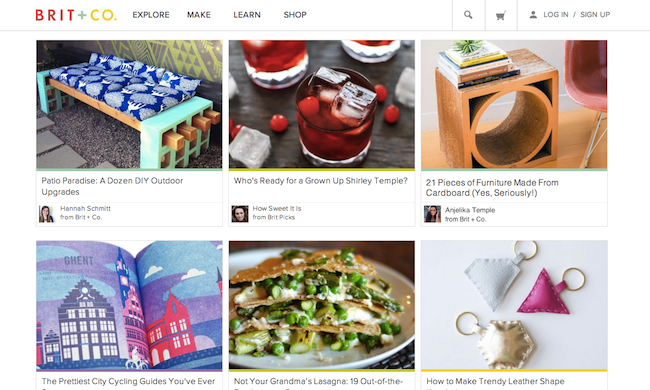
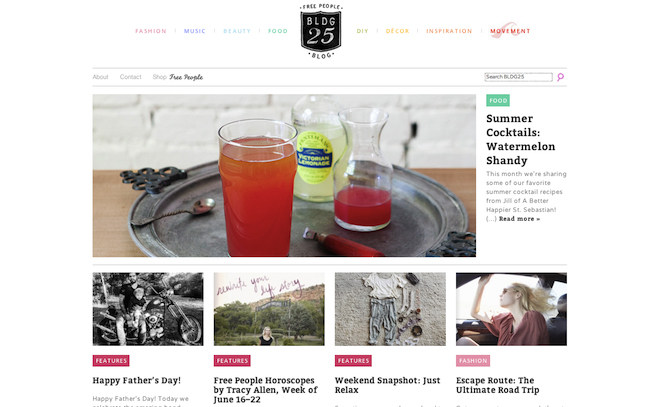
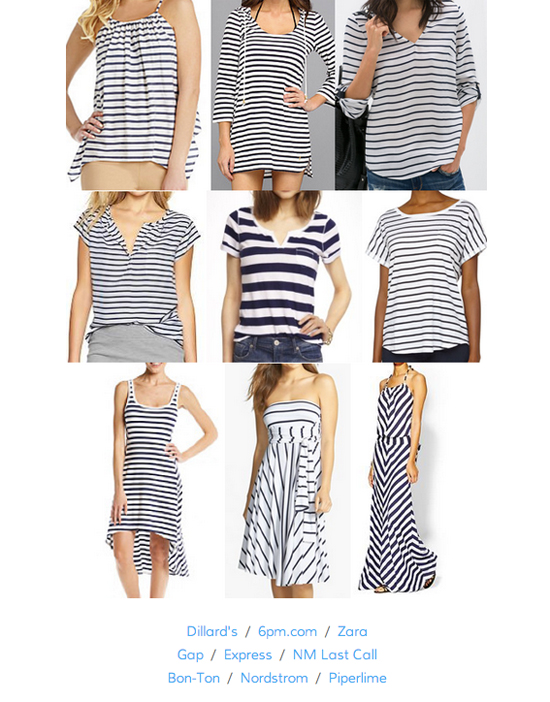
| 5 Key Elements for a Successful Women’s Blog Posted: 08 Jul 2014 08:52 AM PDT 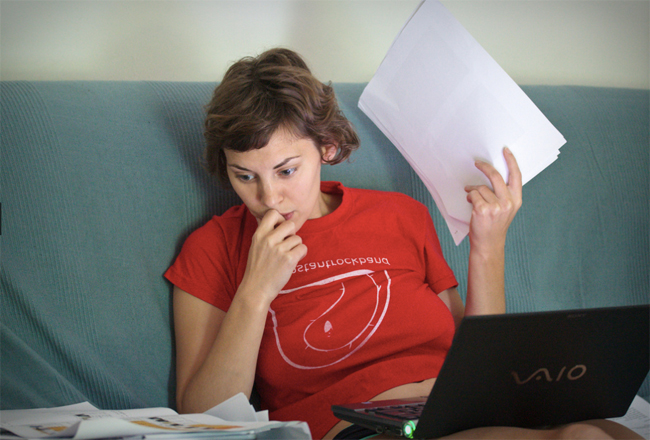 Image via Flickr user Liquine This is a guest contribution by Renee from Beautifille.com. This year marks 10 years of my blogging career, and after starting several women's blogs (some successful, some not), and being an avid reader of them myself, I've learn the key elements in what makes a blog "make it" or not. Here they are. Key #1: Make Sure Your Blog is Visually GreatI usually try not to generalize, but let's face it: women like pretty things. We notice, pay attention and are attracted by how something looks. Having a good blog design is vital because at the end of the day, your blog design and layout is the first impression for a reader (who is very happy to click that X button right away). So what makes a good-looking women's blog? In my opinion, it's simplicity with a feminine touch. A minimalist layout with pinch of feminine color palettes work very well (lilac, reds, pinks and pastels), as shown in these top blogs for women: Cupcakes and Cashmere has a very clean white, gray and pale pink color scheme. Refinery29 has a bold yet feminine look with a color scheme of black, white, mint green and salmon pink. Brit.co also has a clean site with subtle primary colors, keeping her site light and airy. The second thing that makes a blog look great are the photos. Great photos will go a long way on blogs, but even more if your audience is women. Always start your blog post with a nice, attractive photo, and make sure your photos are big; small photos do not capture attention enough in my opinion. Your photo don't have to look super-professional or "glossy" like in fashion magazines (mine never are) but make sure they are visually attractive; i.e. no blurriness, basic composition and bright, good colors (this can be edited on your computer). Picmonkey.com is a great free service that many of the top women bloggers use to make your pictures visually better. It allows for cropping, color correction, and sleek layouts. Key #2: Find your "niche women demographic"Sure, "women aged 16-24" is a demographic, but rather than age, I found it best to have a "niche women demographic" – find your group of women (or your "tribe", as they say these days) within that fashion community. For example, you could be a denim fashion blogger. Or a punk-rock fashion blogger that writes about edgier stuff, or an "indie" fashion blogger. Likewise, instead of just another beauty blog, make it a cruelty-free beauty blog or an "over 40 women's beauty blog." Finding an even tighter niche than just "all women"; will allow you to properly find an even tighter community and thrive in that area. Not to mention, this is also great for branding your blog. Free People's blog does this well: their blog covers a range of topics, but for a certain type of girl: one who lives a "care-free", natural, Earthy lifestyle. Key #3: Offer value to your readersThis is a continuation from the point above, but in your niche demographic, you should still strive to not be like everyone else. It's important in this day and age in the blogging world – because there is literally millions of competition – to offer value to your readers. Personal style posts are great, but they're a dime a dozen these days, and after awhile, people get bored. Same with beauty blogs that just review a product in every post. Make sure to not only show your outfit posts or beauty posts but also offer something of value. Share your personal style tips with your posts, offer honest thoughts on the product, or give personal shopping recommendations on where to get the best bargain. You need to stand out, offer value and make your site different than the others. Key #4: Present information clearlyShopping posts make up a fair bit amount of blogs for women no matter what the niche (what women doesn't love to shop?), so make sure your "shoppable" posts are done right. Keep them clean and easy to see. Personally, for my shoppable posts, I number the items in the collage clearly (make sure there are no fancy artist work, fonts, or cluttered images pasted together) and number the links immediately underneath. Also, I link to shops that offer international shipping so it's even easier for my readers. A blogger who does shopping posts well is J's Everyday Fashion. As shown above, there is nothing else to distract from clearly showing the reader what she is clicking through, and from where. Key #5: Stay away from the dramaIt happens with every niche, but I have witnessed some not-so-favorable behavior behind some women bloggers. After all these years I've managed to keep myself out of it, which would be my tip on taking your blog to the next level: just stay out of it. There is nothing that will make your blog (and "brand") look unprofessional and gain a bad reputation than getting involved in drama, gossip or cliques. Stay out of it, and watch your words too: no "bitching" or complaining (even passive aggressively) on blog posts or social media. This is especially vital with negative comments you may receive – do not lash back or be rude. Always be graceful with all your dealings on your blog, whether it's on the front page or behind the scenes. Renee is the creator of Beautifille.com, a beauty & self-improvement lifestyle site for women. Subscribe for free emails to learn how to improve your confidence, build your true, inner beauty and get the best “naturally you” beauty and style tips. Originally at: Blog Tips at ProBlogger     |
| 2 Simple Ways to Customise Your Facebook Updates Posted: 07 Jul 2014 08:27 AM PDT Today I want to share a Facebook tip that I’m sure many ProBlogger readers will already know, but which I am sure some have not heard about. Every single time I share it, I get “wow, I never knew that!” comments. It’s all to do with how Facebook lets you customise your status updates when sharing links on your Facebook page. OK – so here’s what happens when you add a link into the status update on your Facebook page before you hit ‘post’. You can see Facebook has found an image that it thinks that you should use, has pulled in the page title and put it as the title under the picture and has taken the first couple of lines to put under that as a description of the post. Of course you can change the image by hitting the little arrows in the top left of the image to show other options Facebook pulls in or use the ‘upload image’ to add a completely new image. Most people know how to change images but some don’t know you can also change the title and description of the post. It’s simply a matter of clicking the title or description area. Here’s what happens when you click the title just under the image: Click the title and you now have an editable field that lets you change the title. In the case of links from dPS, I usually delete the name of the site so that only the post title remains. Sometimes however I will try a different title that I think might be more shareable on Facebook or shorten longer titles so they don’t go over two lines. The same thing can be done with the description area under the title. Click anywhere on that paragraph of words and an editable field opens up like this: Again – you can put anything you like in here. This is particularly helpful when your first line is useful for the post but isn’t really descriptive of what the post is or if you want to use the description to boost curiosity of your Facebook followers. I know many of you already use these features but like I said – many seem to have missed the ability to use them so I thought it might be a good tip to share. Originally at: Blog Tips at ProBlogger     |


| You are subscribed to email updates from @ProBlogger To stop receiving these emails, you may unsubscribe now. | Email delivery powered by Google |
| Google Inc., 20 West Kinzie, Chicago IL USA 60610 | |


